Cinema 4D MCP Server
Cinema 4D now features MCP integration, a bridge between your work and supported AI tools. Hand off repetitive, procedural, and iterative tasks while you stay in control of the scene and make all creative decisions.
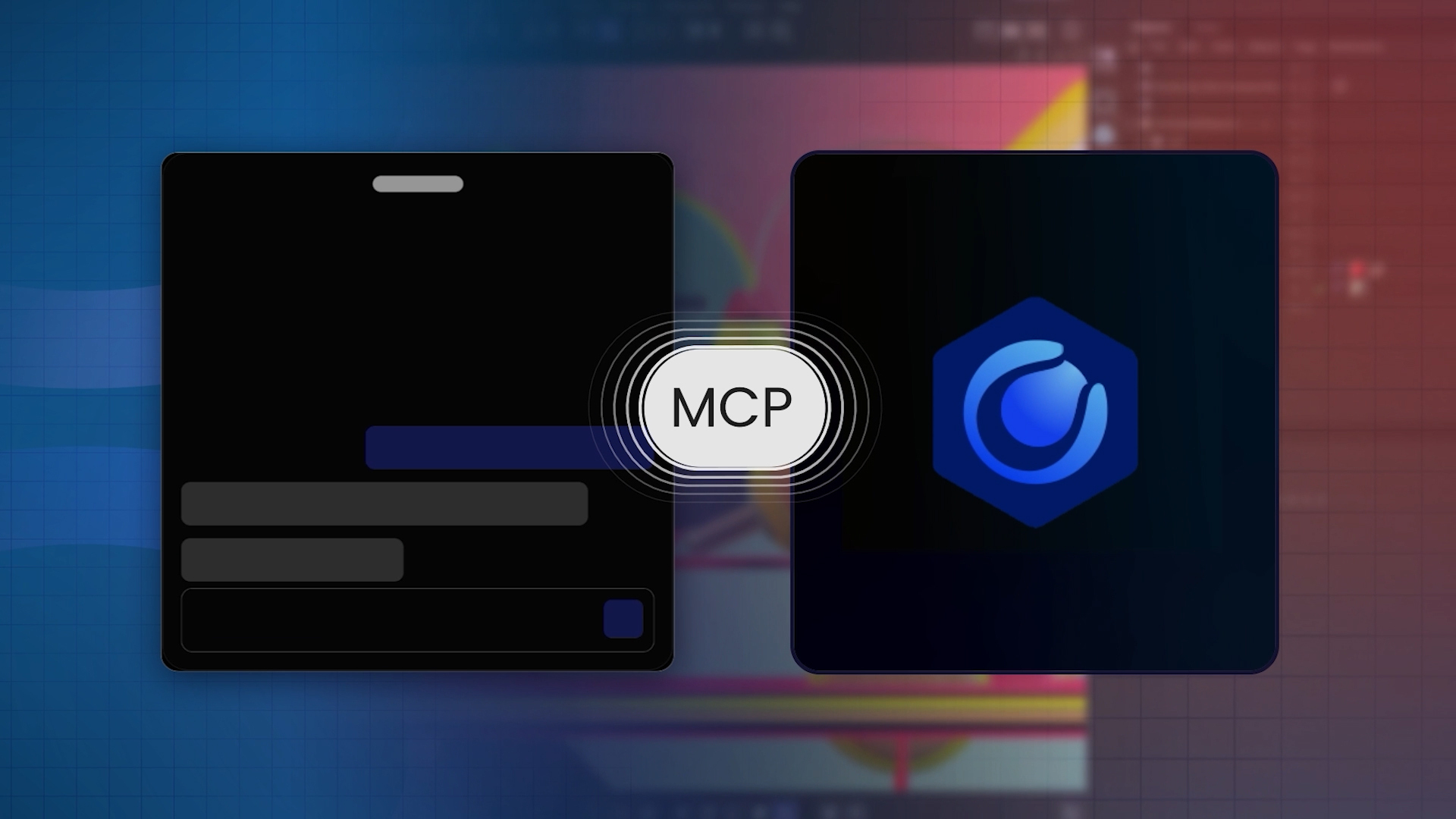
What is MCP?
MCP (Model Context Protocol) is an open standard that lets AI assistants connect to software and use its tools. Much like you speak to your computer through a keyboard, MCP lets an AI assistant like Claude and ChatGPT speak to Cinema 4D.
See it in action
Artist Control
Your scene. Your tools.
Your call.

The Cinema 4D MCP Server is disabled by default. Enjoy full control by easily enabling and disabling it in the preferences at any time.

Enable the level of access to Cinema 4D tools across 15 groups in the preferences.

You decide what it can access. Everything the AI assistant does in your scene is visible and undoable, with commands recorded in a local audit log. Connects to local LLM solutions as well for users with the hardware to run frontier language models on their own silicon.
Features
What you can do with MCP
Works directly in Cinema 4D
Instead of generating an image from a black box, the Cinema 4D MCP Server lets an AI assistant operate Cinema 4D's own tools. The result is native Cinema 4D scene data you can inspect, adjust, and undo.


Hand off tedious work
Spend less time grinding on repetitive tasks and more time on the creative parts of projects that require your craft. Simply describe, in plain language, what you want the AI assistant to do using Cinema 4D’s own tools. All final creative decisions are yours.
New possibilities, in your control
Bring your ideas to life, no matter your skill level. The Cinema 4D MCP Server opens the door to create what you haven’t learned to do yet.


Your choice of AI assistant
The Cinema 4D MCP Server works with your existing workflow. Use compatible AI assistants like Claude and ChatGPT, set up for you at launch, or connect another MCP client yourself.
Setup
Start in three steps
Open Preferences → MCP and check the box to enable the MCP server, then set an MCP client.
In the MCP → Clients section, select your LLM client and click 'Update Selected Client'. Then restart the client.
Start with a simple task, like making a cube, and see the result directly in your project.
From direction to finished scene
Give your AI assistant a direction in plain language.
The assistant calls Cinema 4D tools through MCP using the same toolset available to any Cinema 4D user.
Every operation runs inside Cinema 4D itself. The result is native scene data, not a generated image.
Inspect the change in your viewport. Every object is selectable, adjustable, and undoable.
Not quite right? Say so, or hit Command+Z just like any other Cinema 4D operation.
Hand off the next task. Keep the creative decisions for yourself.
FAQs
Answers to common questions about using the Cinema 4D MCP Server in Cinema 4D workflows.
About the Cinema 4D MCP Server
What is MCP?
MCP (Model Context Protocol) is an open standard that lets an LLM (Large Language Model), also known as an AI app or assistant, connect to an external application and use that application’s tools. The Cinema 4D MCP Server uses this standard to connect your AI app to Cinema 4D, so you can describe a task in plain language and watch the result appear in Cinema 4D.
The AI app (for example, Claude Desktop or ChatGPT Desktop) is called the client. The client talks to the MCP Server through a defined set of tools, such as “create an object” or “render a preview,” and Cinema 4D carries out each tool call on your open scene.
How is the Cinema 4D MCP Server best used?
The Cinema 4D MCP Server does best with well-defined, laborious tasks, such as:
- Renaming and reorganizing a hierarchy
- Translating the names of objects in a scene that arrived in another language
- Creating variations of objects and materials as takes, working from a client’s spreadsheet
- Setting up object IDs and named matte AOVs for compositing
- Debugging a rig or an expression
- Writing a small script or plugin
- Basic modeling
These procedural, often repetitive jobs are the kind you’d happily hand to an assistant. Tasks like debugging and rig building are worth having an AI assistant do in a couple minutes rather than losing an afternoon doing the same work manually. Similarly, routine maintenance should take a minute or two.
Does the Cinema 4D MCP Server replace the way I work in Cinema 4D?
No. You keep working the way you do now, and you decide when to hand something off. The Cinema 4D MCP Server is off by default and when enabled, only takes on specific tasks you describe. The brief, the look, and every creative call remain yours.
I have seen other Cinema 4D MCP servers online. Is this one of those?
No. The Cinema 4D MCP Server is built into Cinema 4D and needs no separate installation. Maxon supports this server for the connection between Cinema 4D and your AI app.
If you set up a third-party server in the same AI app, disable that server while you use the built-in one. The model then sees only one set of Cinema 4D tools.
Does the Cinema 4D MCP Server cost anything?
No. Maxon does not charge for the Cinema 4D MCP Server, which comes with Cinema 4D.
You provide the AI app and the model the app talks to. If the model runs in the cloud, you need an account with that service. Any related fees are between you and the AI service (e.g., Anthropic or OpenAI). A model that runs on your own computer through an app such as LM Studio needs no account with an AI service.
Which AI apps are supported?
At this time, Maxon officially supports Claude Desktop and ChatGPT Desktop, and you can set up either one directly from Cinema 4D’s preferences. Other AI apps that support MCP should also work, though Maxon has not tested them, nor does it officially support them.
Every AI app keeps a settings file that lists the servers the app may connect to. For the apps in the list, Cinema 4D writes its entry into that file for you. For any other app, choose Other in the MCP Client list and click Copy Config. Cinema 4D copies its entry to the clipboard so you can paste the entry into your app.
Can I use a local model instead of a cloud service?
Yes. Apps that run models on your own computer, such as LM Studio, also work. Nearly any recent model can handle basic Cinema 4D tasks, and stronger models usually give better results.
Note: A local model shares your graphics card with Cinema 4D and your renderer. A model that barely fits in graphics memory leaves nothing for rendering, and a slow model can take a minute to create a cube.
What do I need installed?
You need the full Cinema 4D application (version 2026.4 or later) and the desktop client for your AI application of choice, both on the same computer. Nothing else is required.
Getting good results
How do I get results as good as the demos?
The model, the effort you let the model spend, and the clarity of your request usually decide the quality of the result.
- The model. Basic tasks such as renaming work with almost any current model. Tasks that need reasoning about your scene do not, and the gap between a small model and a strong one widens fast.
- The effort or reasoning level, if your app offers an effort setting. Low effort is fine for a quick rename. Give a rig or a render setup more effort. That said, sometimes a medium setting beats a high one, because some models overthink. Test accordingly.
- The request. Describe the objects, the frame range, the renderer, and how you plan to edit the result afterwards.
Note: A demo you see online rarely shows the prompts behind the demo or how many attempts the result took. A task that lands on the first try is the exception. Expect a conversation, with your second or third prompt showing much improved results.
Cinema 4D appears frozen while the AI is working. What is happening?
Most of that wait is the AI thinking, not Cinema 4D working. Cinema 4D is busy for only a fraction of a second at a time.
For added context, a task is a loop. The model reads your request and picks a command. Cinema 4D runs that one command, usually in a split second, and sends back the result. The model reads the result, thinks, and picks the next command. The loop often repeats dozens of times, and the minutes go into the thinking. The status bar in Cinema 4D shows which command is running. If a task drags, look at the AI app first.
While the MCP server working on a task, it is best to monitor the activity and progress of the AI, but without also using the computer and C4D. In many cases, your actions can conflict with the MCP server tasks, or prevent the LLM client from completing processes. It is best to wait for the task to be completed, or pause the task, if you wish to take control.
The AI insists Cinema 4D lacks a feature that the program has. Why?
A model gets answers from training data that may predate the feature, and some models even claim that no official Cinema 4D MCP Server exists. Think of the situation as Schrödinger’s MCP. Support only exists when the AI observes it.
When an app connects, the server tells the model where the Cinema 4D manual and SDK documentation live. A model confident in its training data may ignore that hint, so you may need to ask the AI directly to refer to up-to-date documentation. The model needs web access through the AI app to check the site.
Can I trust what the AI tells me about my scene?
The AI may describe its own work with more confidence than the work deserves. Check the Object Manager and the viewport before you accept that something is fixed or finished.
Control and safety
How does Cinema 4D keep my scene private?
Only AI apps you set up can connect to Cinema 4D. Unless you turn on remote connections, both sides of that MCP connection also have to run on the same computer.
Picture a lock and digital key. On first launch, Cinema 4D makes a lock for itself and a matching key. Each AI app you set up gets a copy of that key, and anything without a key gets blocked. Cinema 4D delivers the key for you, with no copying or pasting on your part. Keep the key private. Don’t write the key down, and don’t put your AI app’s settings or your Cinema 4D preferences folder somewhere others can reach.
Once an AI app is connected, though, what it does with your scene is up to that app and its provider - check their settings if you want to know how they handle your data.
Who is asking me to approve every step, and can I turn the prompts off?
Your AI app asks, not Cinema 4D. Each app decides how often to ask and whether you can switch the prompts off. Claude Desktop, for example, has an Auto mode at the bottom left of the prompt field.
Cinema 4D controls something different. Under Edit > Preferences > MCP, you choose which tools the AI is offered at all and whether the AI may run Python.
Where can I see what the AI is allowed to do?
In the Toolset section, under Edit > Preferences > MCP. Each checkbox controls one group of tools.
Details: The full list of tools and what each tool does is in a reference file in the MCP folder inside your Cinema 4D preferences folder (Edit > Preferences > Open Preferences Folder…). Every command the AI sends is written to a log file in the same folder for auditing and safety, and the status bar shows each call as it runs.
What do the two Python preferences do?
One setting lets the AI run Python code in Cinema 4D. The other setting lets the AI create and edit objects that contain Python, such as Python tags, generators, and effectors.
The settings are called Allow exec_python Command and Allow Python-Bearing Operations. If the AI tries to do something that a setting blocks, the refusal names the setting that needs to be turned on. Keep Allow Python-Bearing Operations in mind when you exchange scene files. Python written into a scene runs wherever that scene opens next.
Enabling either setting lets a connected AI app write and run Python without your review beforehand, so you're responsible for what runs under your account- check what a scene contains before you trust it, especially one you didn't build yourself. Connecting an AI app to Cinema 4D is your choice, and it's between you and that AI provider - Maxon doesn't warrant or support it. You'll see a warning about this when you enable the MCP.
Can I undo what the AI did?
Yes. Each batch of changes can be reversed with Cinema 4D’s undo functionality.
If a batch fails partway through, the steps that already ran stay in the scene and the rest are skipped.
Can I stop the Cinema 4D MCP Server without quitting Cinema 4D?
Yes. You can disable the Cinema 4D MCP Server at any time. Simply uncheck Enable MCP Server under Edit > Preferences > MCP, or run Stop MCP Server from the Extensions menu or the Commander. Connected apps lose their connection right away, and Start MCP Server brings the connection back.
Can an AI app on another computer connect?
Only if you allow remote connections. By default, the server only accepts connections from your own computer.
Opening the server to other computers takes three settings under Remote Access. Turn on Allow Remote Connections and confirm the warning, set Host to an address the other machine can reach, and add that machine’s IP address (or a range such as 192.168.1.0/24) to Whitelisted IPs. Don’t stop after the first setting. Turning on remote connections alone doesn’t let anyone in, because a request from an address not on the list gets refused. Browser-based apps also need their address listed under Browser Client Origins. Remote connections are not encrypted, so use remote access only on a network you trust.
Can I use Maxon assets when using the Cinema 4D MCP Server?
Maxon Capsules are high-quality models, materials, and more that can greatly enhance your project. The Cinema 4D MCP includes skills to search for and include assets from Maxon's Capsule library within your projects.
Keep in mind that while Maxon Capsules are licensed for end-users to include in commercial projects, they cannot be used to train an AI. To ensure your scene data is not used to train the AI model, you can often disable a setting in the AI tool's preferences. Before connecting an AI provider, you should carefully review that AI provider’s data usage and training policies.
For more details, please refer to Maxon’s End User License Agreement.
Working with the results
Can I edit what the AI produces by hand?
In general, the work an LLM does within an MCP on your behalf results in fully editable Cinema 4D projects, but the LLM may not necessarily construct things in a way that makes them easily editable.
If you plan to refine a result yourself, saying so in your request can help make this easier for certain tasks. Generated animation, for example, may carry a keyframe on every second frame with linear interpolation, which is hard to shape by hand afterwards.
Can a colleague pick up and change what the AI built?
The answer depends on how the AI built the result. A rig driven by generated Python is hard for anyone to change without the conversation that produced the rig. Where handoff matters, ask the AI for a setup that uses standard Cinema 4D features instead of Python.
Set up and troubleshooting
How do I know the connection works?
Ask your AI app to create a simple shape, such as a cube, in Cinema 4D. If the shape appears, you’re connected.
Details: Most apps also list Cinema 4D among their connected servers. In Claude Desktop, look for cinema4d under Settings > Connectors, with a check mark in the Status column. The server also appears under the + button in the chat box. Connection status and logs are under Settings > Developer.
My AI app does not show any Cinema 4D tools. Why?
This is usually because Cinema 4D wasn’t running when the AI app started. Quit the AI app and restart it.
If restarting doesn’t fix the problem, check two more things. The Cinema 4D MCP Server ships switched off by default, so make sure the Enable MCP Server setting is checked (or run Start MCP Server from the Extensions menu or the Commander). And if you clicked Regenerate Token, most apps stop working until you select each app in the Clients section and click Update Selected Client again, because those apps keep their own copy of the old key.
Most apps try to connect when they start and wait up to 20 seconds for Cinema 4D. Once connected, an app reconnects on its own if you restart Cinema 4D later, but the app won’t retry a first connection that failed. Some apps start at login and keep running in the background after you close their windows. Opening the window again doesn’t restart the app.
I clicked Update Selected Client, but the app’s settings file looks unchanged.
Cinema 4D adds one entry for itself and leaves everything else in the file unchanged. Restart the app completely so the app reads the new settings.
Cinema 4D saves a backup of the file before writing. If your app isn’t in the list, or Cinema 4D can’t find a listed app’s settings file, choose Other, click Copy Config, and paste the entry in by hand.
I already use other MCP servers. Will Cinema 4D change their entries?
No. Cinema 4D touches only the entry Cinema 4D wrote itself.
Every other entry is kept, the file is backed up before each write, and an entry Cinema 4D didn’t write is reported and left alone. This applies to both Update Selected Client and Remove from Client.
A tool I expected isn’t offered to the AI. Why?
Check the Toolset section under Edit > Preferences > MCP. A model that can’t see a tool reports the feature as missing, not switched off. Select All brings back the full set, and changes take effect after you restart the AI app.
The reverse also helps. If the AI keeps picking the wrong tool, turn off the groups you don’t need. A shorter list helps the model choose and costs the model less context.
Keep in mind that MCP uses Cinema 4D's Python API. The Cinema 4D Python API is extensive and can access virtually everything in Cinema 4D, including Scene Nodes and Redshift Materials. It is possible, though, that a built-in feature or 3rd-party plugin is inaccessible due to a gap in API coverage.
What happens if Cinema 4D shows an error while the AI is working?
The AI app can’t see Cinema 4D’s dialogs and may carry on as if nothing happened. Dismiss the dialog, tell the AI what the message said, and ask the AI to check the scene before continuing.
Note: The status bar reports the failed call. A single failed call is normal, since a model often tries something, fails, and follows up with a corrected call.
Building many small objects stalls. Why?
Tasks that create hundreds of separate objects can slow down or stall partway. Ask the AI to combine the work into fewer, larger objects, or to work in batches.
Does the Cinema 4D MCP Server run in Commandline, Team Render, or c4dpy?
No. The Cinema 4D MCP Server needs the Cinema 4D interface and runs only in the full application, not in Commandline, Team Render clients and servers, c4dpy, Cineware, or Lite.

You direct.
The Cinema 4D MCP Server delivers.
Explore a new way to work with Cinema 4D while keeping the creative decisions in your hands.