Maxon Plus

Maxon Plus expands your creative possibilities at every stage of the workflow, from exploring ideas to storing assets and gathering feedback. Working alongside Cinema 4D, ZBrush, and other Maxon Apps, it allows you to send models to clients for review and approval in any browser, generate editable 3D models, or texture existing models with AI.

Separate subscription · No other Maxon subscription required · Not included with Maxon One

Loading...

플랜 포함 사항

Maxon Review (Public Preview*) 액세스
Maxon Plus 크레딧으로 구현 가능한 AI 워크플로우
클라우드 렌더링 - 곧 추가됩니다
Loading...

New | Public Preview

Maxon Review

Feedback on your 3D work, in any browser.
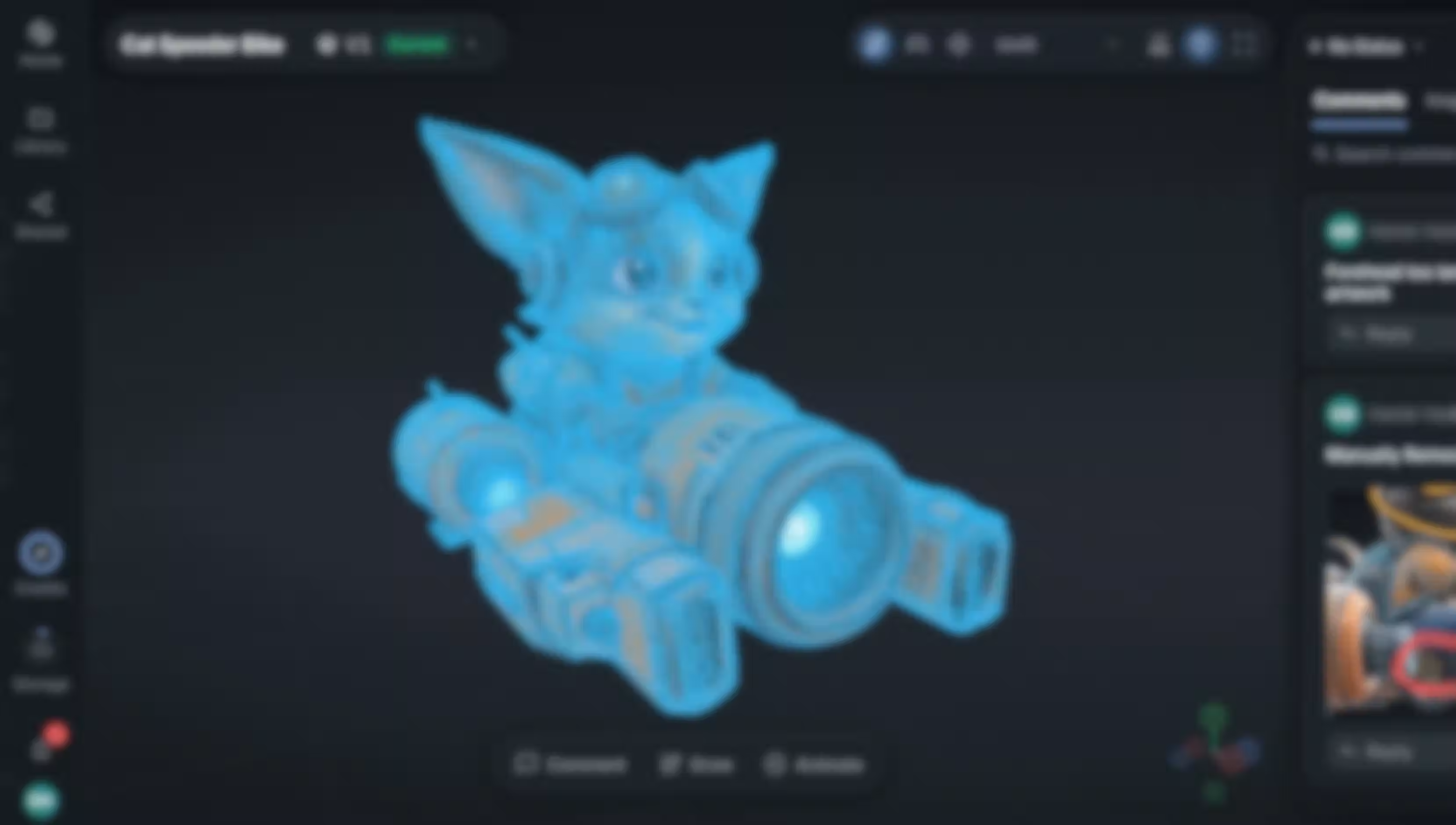
Share a link and anyone can explore your model in 3D, leave pinned comments on it, and compare versions side by side, all in their browser. You can also share images and videos for fast, seamless client review.

During public preview phase, Maxon Plus subscribers can invite unlimited viewers, commenters and editors.

Best for:
Studios, agencies, and freelancers who share work with clients.
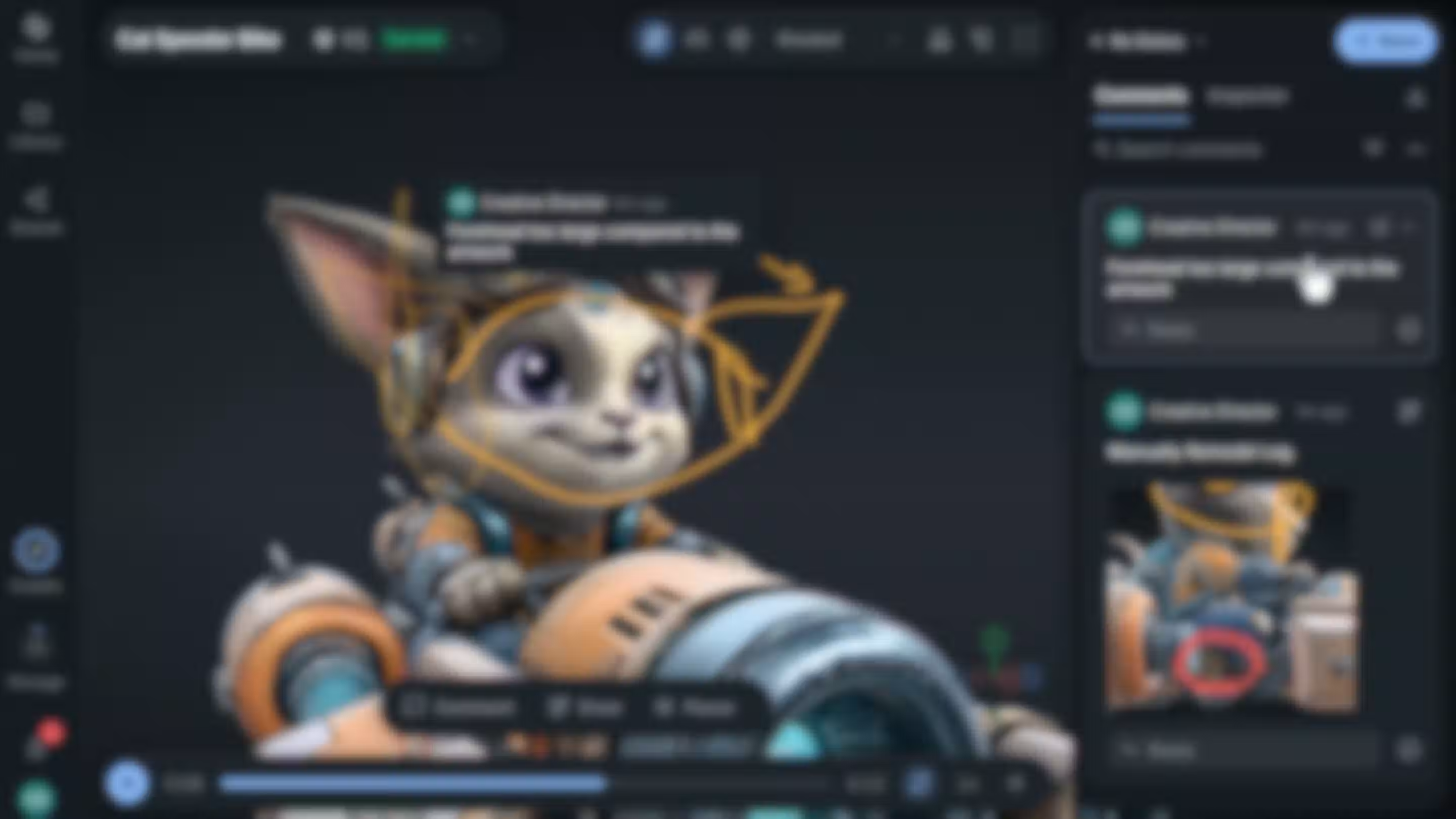
Maxon Review image

New

AI

From idea to 3D models and textures, fast.
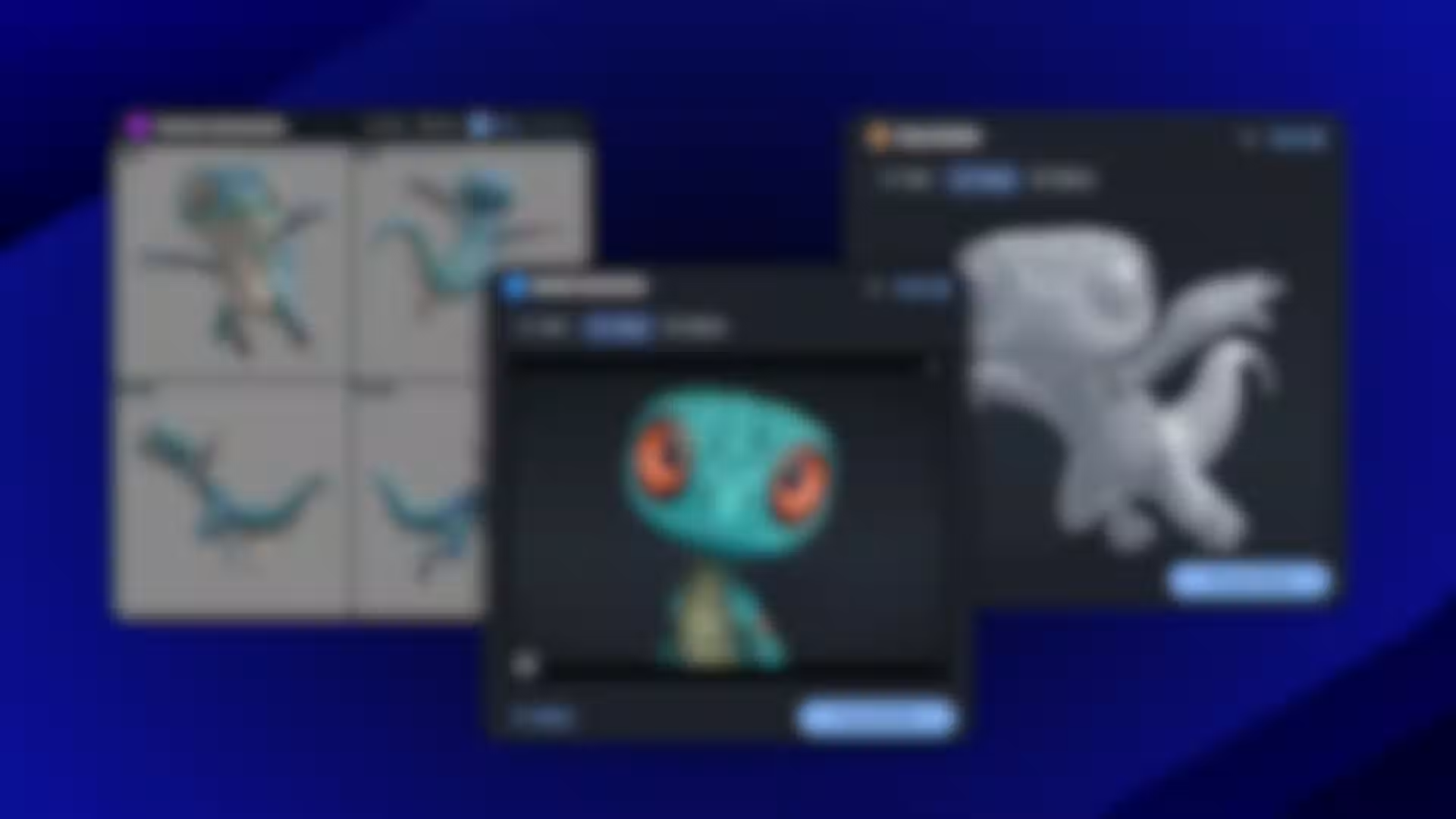
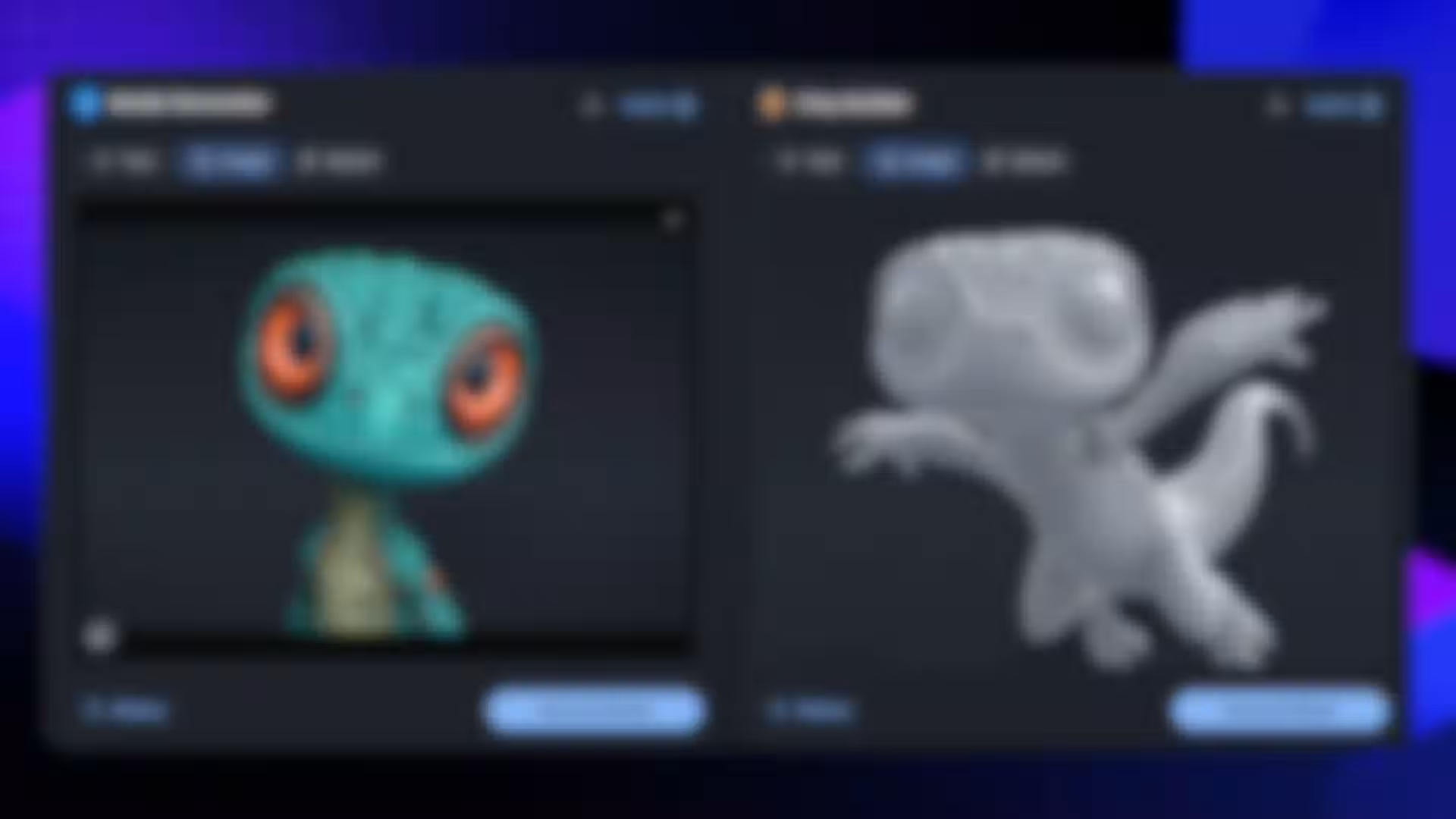
Use text prompts or reference images to generate a textured 3D model or new textures for an existing 3D model using Maxon Plus credits. Model Generator allows you to turn a prompt or reference image into an editable model, Texture Generator creates a texture based on your description of the surface you want for an existing model and Clay Builder turns your sketches and ideas into a starting point for your next sculpt. 

Best for:
Concept artists, designers and anyone who needs a model fast.

AI image

Coming soon

Cloud rendering

Launching first for Cinema 4D on iPad
Send a scene to the cloud, follow every job as it renders and download frames when they’re done.

Cloud rendering image

Maxon Review

Share your work with others and get feedback from your customers. 
Reviewers can comment right inside their browser and don t need to install anything. 

Reviewers can click directly on any part of the model and easily add a comment. Maxon Review allows them to sketch over it, record a voice note, mention a colleague, react, and mark it as resolved when it's taken care of. Everyone sees the same model, allowing for seamless collaboration.

A rendered image does not show how the model is built. Reviewers can open the object tree, isolate parts, check materials, textures, and UVs, switch lighting and environments, and measure the model’s size, all in the browser.

Display modes include: 

  • Shaded, Unlit
  • Matte 
  • Matcap
  • UV checker
  • Wireframe
  • Vertex normals, walk mode, USD variants and cameras, built-in animation, and automatic turntable and exploded views.

Every upload is saved as a new version with comments preserved. Compare two versions side by side, wipe between them or lay one over the other. Set a status on each review so everyone knows what's approved and export the comments when you need them elsewhere. 

Upload to Review from Cinema 4D or ZBrush. Each new version lands next to the last one, with its comments kept.

Send a link and clients can review in any browser, as a guest and with no subscription required on their end. Reviewers don't need experience in using 3D software, as the process is straightforward and user-friendly. Decide who can view, comment, upload or edit, add a password or an expiry date, choose whether downloads are allowed, or share a whole folder. Notifications and email alerts tell you when someone replies. A free Maxon account is required to leave comments.

AI Tools

Start with a sentence or a photo. Or give a model you already have new textures.

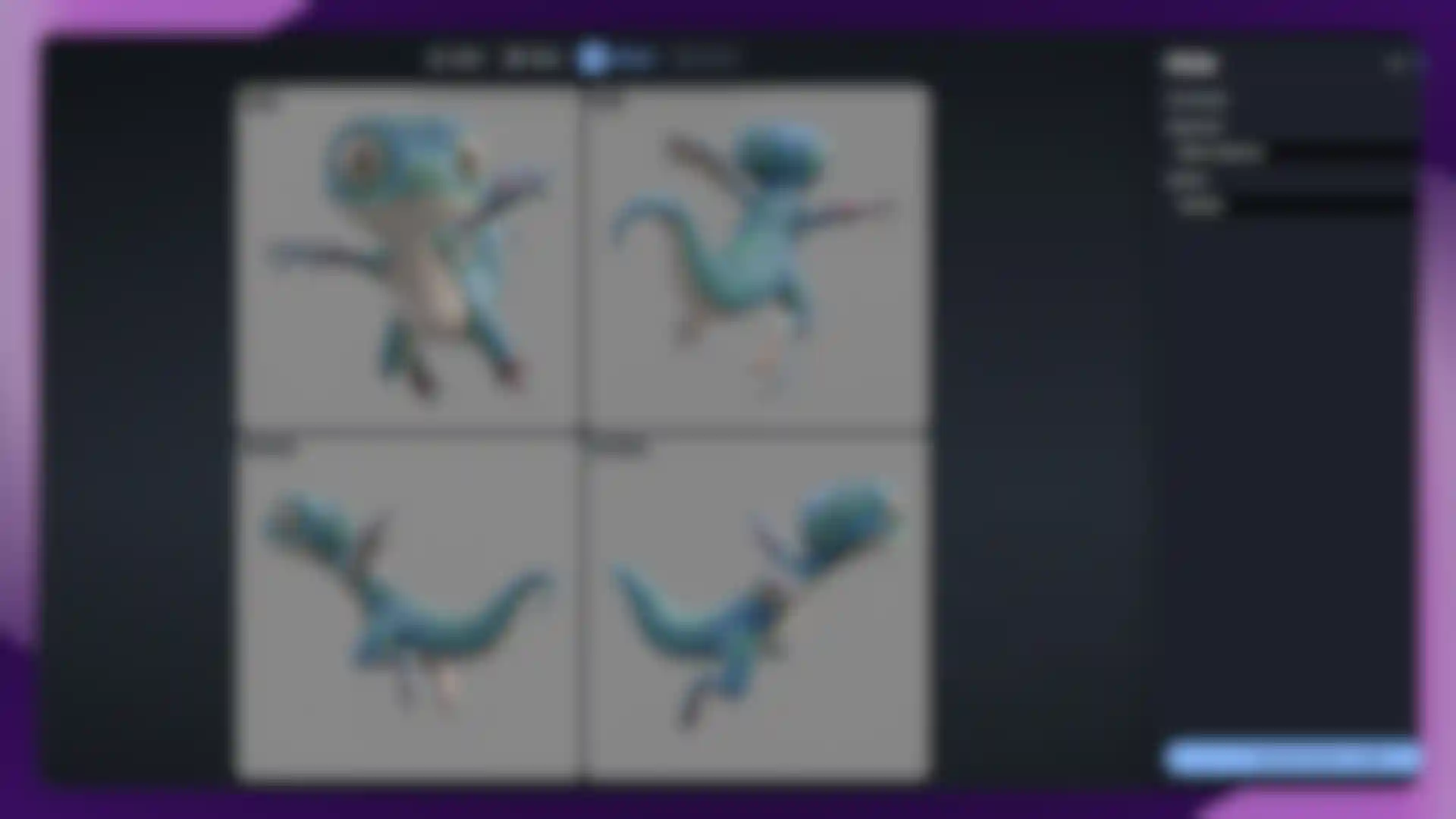
Model Generator allows you to turn a prompt or reference image into an editable 3D model. You can start with a text prompt, upload a reference image, or draw a sketch right inside your browser and see several concepts based on it. Choose and refine a concept you like and generate a 3D model. Model Generator is available to Maxon Plus subscribers online or within Cinema 4D.

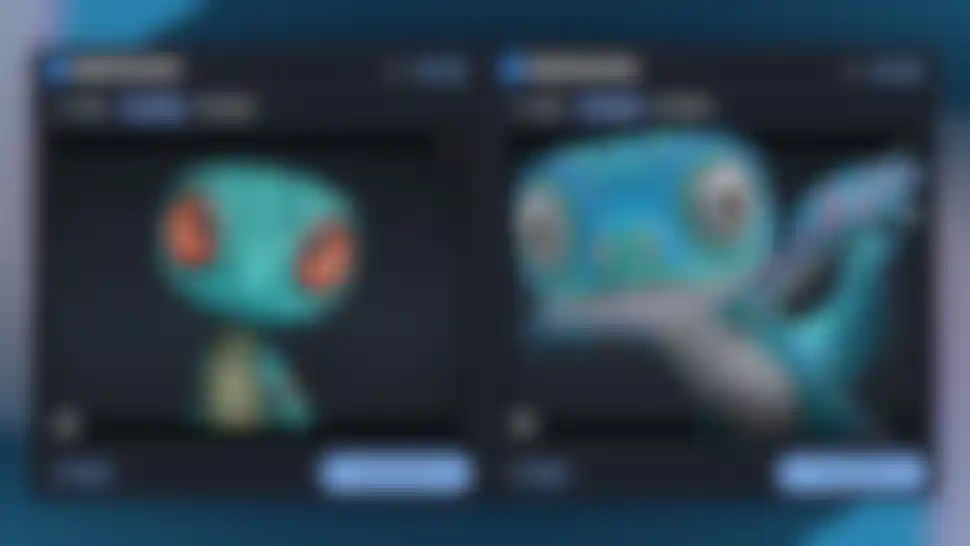
Texture Generator creates a texture for an existing model based on your description of the surface you want or reference images. You start with a model and generate the textures you want to add and develop the textured result further in your creative workflow. Texture Generator is available to Maxon Plus subscribers online or within Cinema 4D.

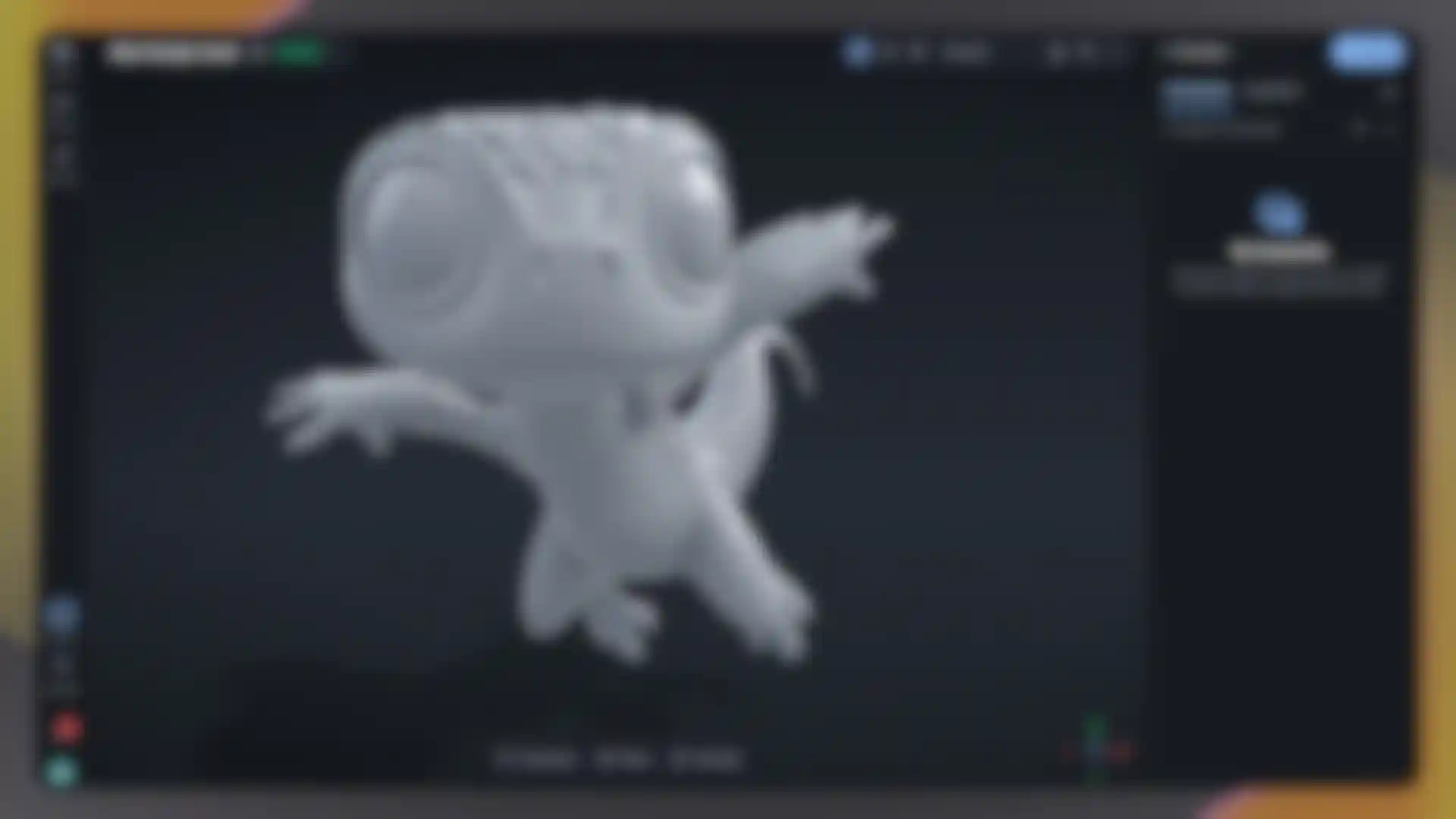
Clay Builder turns your ideas into a starting point for your next sculpt. Feed it with a text prompt, a reference image, or draw a sketch of the object you want right inside your browser to generate a simple, untextured base mesh. You can refine the interpretation of your idea before generating geometry. Clay Builder is available to Maxon Plus subscribers online or within ZBrush for iPad.

Coming soon

 Launching first for Cinema 4D on iPad. 

Send a scene to the cloud, start the render queue and download stills or videos when they’re done. 

Who it’s for

From your first model to customer review, Maxon Plus gives you more ways to explore ideas and expand creative possibilities. You get an art-directable starting point in 3D fast and refine it in your existing Maxon tools to make the final result completely yours.

You switch between 3D, motion, VFX, and client work every day. Maxon Plus helps you generate models and explore variations faster, while staying in control creatively. You don’t need to juggle extra tools to get client sign-off. 

Start with a clay-like base and sculpt it your way, or explore new textures on models you already have, all inside the apps you already know.

An easy starting point for your first models. Describe your idea with a simple prompt, get a 3D model, and learn as you refine it. 

AI generation and reviews run in the cloud, not on your machine. They work from a laptop, an iPad, or any browser. 

COMING SOON
Cloud rendering, coming first to Cinema 4D on iPad. 

Maxon Plus

Sign in with your existing Maxon account.
Your reviews, AI generated models, and notifications are saved in one library, with one monthly credit allocation.

Maxon Review Mark Prim 200px
Review in Maxon Review

Spatial comments, inspection, versioning, and sharing for 3D, video, and images.

Create with AI

Build 3D models from text or images and generate textures for existing models.

Maxon Plus Credits icon black 01
Use Maxon Plus credits

One credit allocation for all AI workflows.

Maxon Plus

Your Maxon Plus subscription includes Maxon Plus credits for AI features and cloud services in Maxon Plus, on web or as integrated across selected Maxon software.

Generate a textured 3D model from a prompt | Generate a textured 3D model from an image | Generate textures for a model you already have

Maxon Plus Credits icon 01
One credit allocation for everything

Maxon Plus credits are renewed with each monthly billing cycle of your subscription pack, do not carry over to the next billing cycle, have no cash value, and are not transferable or refundable.

1. Pick a pack

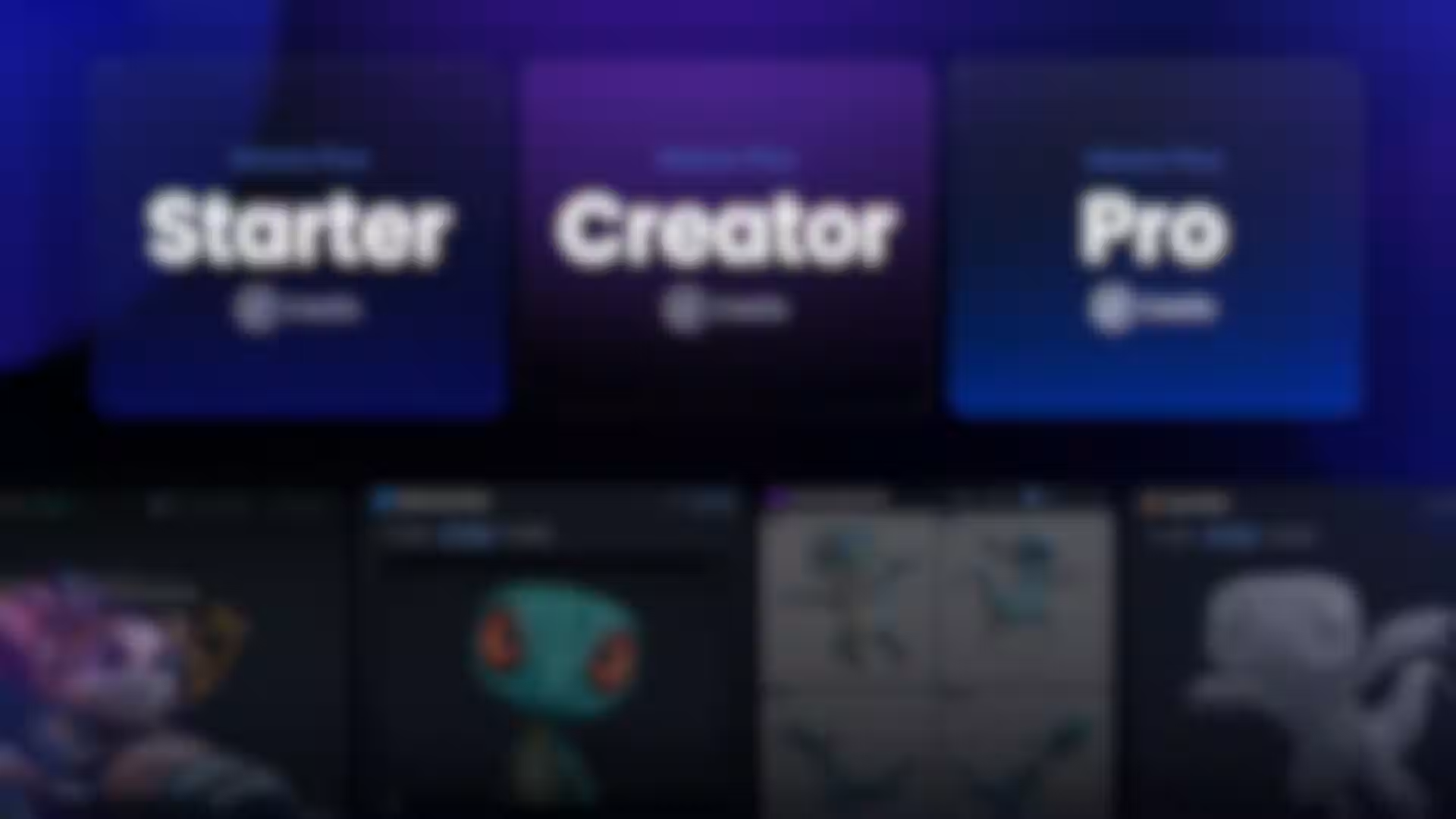
Choose Starter, Creator, or Pro, each with its own monthly allocation of Maxon Plus credits to match the way you work.

*Maxon Review requires a Maxon Plus subscription but consumes no Maxon Plus credits during the preview.

1. Pick a pack image

2. Create wherever you work

Build models and textures in Cinema 4D, ZBrush for iPad or your browser, all from the same credit allocation.

2. Create wherever you work image

3. Need more? Add a pack

Each additional subscription pack comes with its own monthly credit allocation, which renews with its own monthly billing cycle and combines in your total allocation. Unused Maxon Plus credits do not carry over. Each subscription pack renews on its own date.

3. Need more? Add a pack image
What is Maxon Plus?

Maxon Plus is a collection of cloud services that make your creative workflow easier. At launch it includes four services: Model Generator, Clay Builder, Texture Generator and Maxon Review, our new web-based review and approval tool. Maxon Plus is a subscription you buy separately from your Maxon product plans.

Who provides Maxon Plus?

Maxon Plus is provided by Maxon Computer GmbH, regardless of where you subscribe (Maxon webstore or App Store) or in which Maxon product you use it.

What do I get with a Maxon Plus subscription?

Each subscription gives you a monthly allowance of Maxon Plus credits, and review collaboration with unlimited Maxon Plus subscribers. The use of certain Maxon Plus services consumes Maxon Plus credits.

What are Maxon Plus credits?

Credits are personal to your account, have no cash value and are not transferable or refundable. Maxon Plus credits are included in your subscription pack for AI features and cloud services in Maxon Plus. At launch, Model Generator, Clay Builder and Texture Generator will consume Maxon Plus credits. More services may be added.

Do I need a Maxon product subscription to use Maxon Plus?

No. Anyone aged 18 or older with a Maxon account can buy a Maxon Plus subscription. You can use Maxon Plus on the web even if you work in other 3D tools.

Is Maxon Plus included with Maxon One or my existing license?

No. Maxon Plus is a separate subscription and isn't automatically included with Maxon One or standalone product licenses.

Can I use Maxon Review without the AI tools?

Yes. Maxon Review works completely independently of the AI tools. You can use Maxon Plus purely for reviewing 3D models, images and video without ever generating a model or texture.

Is Maxon Plus available now?

Maxon Plus launches in November 2026 and its feature Maxon Review will be available as a Public Preview at launch, not consuming any Maxon Plus credits during that phase.

Which plans are available?

Maxon Plus subscription comes in three monthly packs. Check out the prices in your region.

Every subscription pack includes unlimited review collaboration with other Maxon Plus subscribers.

Can I hold more than one subscription pack?

Yes, subscription packs stack: you can buy any combination of Starter, Creator & Pro. Maxon Plus credits and storage from all active subscription packs are combined into your total allocation. Each subscription pack renews or expires on its own date.

Can I upgrade or downgrade my plan?

No. To move to a different subscription pack, cancel the renewal of your current subscription pack and subscribe to the one you want.

What happens if I consumed all Maxon Plus credits for the Maxon Plus services before the month ends?

You can buy another subscription pack right away; its Maxon Plus credits and storage are added to your credits and storage allocation immediately. Your monthly Maxon Plus credit allocation renews with each billing cycle.

Do unused Maxon Plus credits carry over?

No. Maxon Plus credits renew each monthly billing cycle, and  do not carry over to the next billing cycle.

Can I buy Maxon Plus from the App Store and from the Maxon webstore?

Yes. Wherever you buy your subscription pack, Maxon Plus credits go into your credits and storage allocation and work across all Maxon Plus services. The subscriptions themselves stay separate. App Store subscriptions are billed and managed by Apple.

Can I get a refund?

Maxon Plus follows Maxon’s standard refund policy.

How do I know how many Maxon Plus credits are consumed by a Maxon Plus service?

The Maxon Plus credit consumption of an operation is always shown before you run it, so you can decide before Maxon Plus credits are consumed.

Which Maxon Plus services consume Maxon Plus credits?

Cloud-based AI operations consume Maxon Plus credits: concept preview images, multi-view image sets, final 3D models and texture passes.

Do all operations consume the same number of Maxon Plus credits?

No. Operations consume different amounts of Maxon Plus credits depending on your input, the selected third-party AI provider and the settings, and the scope and complexity of the task or result.

What if I don't have enough remaining Maxon Plus credits for an operation?

We tell you before the operation runs and show you the Maxon Plus credit consumption. An operation will not run when it would consume more Maxon Plus credits than you have remaining in your Maxon Plus credit allocation. You can buy another subscription pack to keep working.

Can I cancel an operation after starting it?

No. Once processing begins, the operation can't be stopped and its Maxon Plus credits will be consumed.

What happens if an operation fails?

If an operation fails because of a system error on Maxon's side or our provider's side, the Maxon Plus credits for this operation are still consumed but will be restored to your Maxon Plus credit allocation automatically.

Can I use Maxon Plus credits included in my subscription pack across different Maxon products?

No. Maxon Plus credits can only be used for Maxon Plus services.

Do local AI features consume Maxon Plus credits?

No. Only cloud-based operations consume Maxon Plus credits. AI features that locally run on your own hardware, such as Imagesense in the Cinema 4D Asset Browser and Red Giant Depth Generator, are not part of Maxon Plus.

Where can I see my Maxon Plus credit allocation and usage history?

In the Maxon App and in your account on maxon.net. You'll find your Maxon Plus credit allocation, which Maxon Plus service consumed your Maxon Plus credits, alerts when your remaining Maxon Plus credits are low or about to expire, and plan management. Your Maxon Plus credit allocation is also shown inside supported apps and on the Maxon Plus Dashboard.

What is Maxon Review?

Maxon Review is a browser-based workspace for presenting, reviewing and approving creative work. Share 3D models, videos and still images with clients, art directors and pipeline leads, collect precise visual feedback, manage version history and record approval decisions, without your reviewers installing any 3D software.

What can reviewers do in the 3D viewer?
  • Navigation: orbit, walk on surfaces, game-style navigation, view framing and switching between saved scene cameras
  • Display modes: shaded, unlit, matte, matcap, UV checker, wireframe overlay, vertex normals and bounding boxes
  • Markup and collaboration: threaded comments, 2D and 3D drawing and markup tools, comment search, and email and in-app notifications for tagged collaborators
  • Inspection and export: scene hierarchy and metadata, status tags (In Progress, Changed, Approved), and downloads in the original format, USD, OBJ or STL when the creator allows it
Which file types can I upload?
  • 3D models: .glb, .gltf, .fbx, .obj, .stl, .usd, .usda, .usdc, .usdz and .zip
  • Videos: .mp4 and .mov. The versions streamed for web review are capped at 5 GB.
  • Images: .png, .jpg, .jpeg, .webp and .gif
  • Other project attachments: any standard non-executable format. These can be downloaded but not previewed.

For security, web-scripting and executable formats (.html, .htm, .xhtml, .svg, .js and .mjs) are blocked.

Does Maxon Review consume Maxon Plus credits during the Public Preview?

No. During the Public Preview, Maxon Review consumes no Maxon Plus credits, including inviting reviewers who don't have a Maxon Plus subscription. You need a Maxon Plus subscription to create reviews, and review media counts towards your Maxon Plus storage.

Where can I use Maxon Review?

In your web browser. Neither you nor your reviewers need to install anything.

Do my clients or collaborators need a paid Maxon Plus subscription?

No. Viewing is always free. As a Maxon Plus subscriber, you can invite unlimited external viewers, commenters and editors without consuming Maxon Plus credits during Public Preview. External reviewers only need to create a free Maxon account where that's required to take part, no Maxon Plus subscription is required.

How are review links secured?

Each review link can be active, expired, revoked or password-protected. Owners and admins can check collaborator history and access logs, and if a link is compromised you can revoke it immediately from the workspace settings.

Will Maxon Review consume Maxon Plus credits after the Public Preview?

Review between Maxon Plus subscribers stays unlimited. We'll inform users about the change of Maxon Review from Public Preview to a regular feature consuming Maxon Plus credits. For details on availability and maintenance, please see the Service Description for Maxon Plus Cloud Features.

Why is Maxon Review a Public Preview?

You're among the first to try our new review and approval tool, not consuming Maxon Plus credits while we're in preview.

Is storage included?

Yes. Your Maxon Plus subscription includes storage allowances as part of the Maxon Review feature. It is not a general file storage service and can’t be bought separately. Storage allowances may change during the Public Preview of Maxon Review. Please keep your own copies of important files.

What happens to my stored media if my Maxon Plus subscription ends?

Your reviews and library become read-only for 30 days, so you can still view and download your media. We notify you when your plan ends and again 15, 7 and 1 day(s) before deletion. After that period, stored media and reviews are deleted.

Can I upload a Cinema 4D (.c4d) or ZBrush (.zbr) file directly?

Not at this time. Maxon Review is built on top of web technologies so that models can be reviewed by anyone you choose, even if they don't have 3D experience. You'll need to use the Maxon Review panel built into Cinema 4D or ZBrush to upload your project to Maxon Review in a web-friendly format.

Which AI tools are included in Maxon Plus?

Maxon Plus includes three cloud-based AI tools at launch. The use of these cloud-based AI tools consumes Maxon Plus credits:

  • Model Generator: generates 3D models with materials from text prompts, sketches or reference images. Available to Maxon Plus subscribers  on the web and in Cinema 4D.
  • Texture Generator: creates and applies surface textures to an existing 3D model from text prompts or reference images. Available to Maxon Plus subscribers on the web and in Cinema 4D.
  • Clay Builder: generates untextured base meshes for sculpting in ZBrush, including ZBrush for iPad. Available to Maxon Plus subscribers on the web and in ZBrush for iPad.
What's the difference between the Model Generator and the Clay Builder?

They work in a similar way, but the Clay Builder uses specialized processing so its models make good starting points for sculpting in ZBrush. Use the Clay Builder when you want a base to sculpt from, and the Model Generator when you want a finished model.

How does the Model Generator work in Cinema 4D?

The Model Generator requires Cinema 4D 2027.1 or later. Open it from the Create menu, from the standard layouts next to the Asset Browser, or by searching for "AI Model Generator" in the Commander.

  1. Prompt: enter a text prompt, with optional style presets such as Photorealistic, Cinematic or Illustrative, or supply an image or sketch.
  2. Preview: click Generate Preview Images to review concept options. The number of Maxon Plus Credits used is shown on the button.
  3. Multi-view (optional): generate front, side and three-quarter views to make the final 3D model more consistent.
  4. Settings: surface and geometry detail (High-Quality & Flexible, or User Defined with geometry detail, triangles or quads, and a target polygon count); and materials (None or PBR) at Standard, HD or 8K texture resolution.
  5. Insert: choose Insert in Current Scene, which adds a light dome automatically, or Open as New Scene. Turn on Remesh for clean topology.
What do I get at the end?

The model arrives as a native Cinema 4D object, editable like any other.

Where are generated model files saved?

Generated model files are saved in your local Documents folder under Documents/Maxon/model-builder/model/<result-id>/ and automatically synced to the cloud. The generated .glb or .fbx files are encrypted locally so they go through Maxon's automated scene optimization and material post-processing pipeline rather than being extracted unoptimized.

How does the Texture Generator work?

The Texture Generator is built for look development on an existing 3D model. Give it a descriptive prompt or a reference image, and adjust the camera views (front, back, sides) to guide where textures go. [By default, it creates valid UVs for Cinema 4D; you can choose to preserve your model's existing UV layout instead.] The result is a set of surface textures ready for review and refinement. It doesn't replace manual UV and texture cleanup for final production.

What do I need to use the cloud-based AI tools?

A Maxon Plus subscription, because the AI tools run in the cloud and consume Maxon Plus credits.

Is there an age requirement?

Yes. To use the cloud-based AI tools, you need to confirm  that you are 18 or older when you purchase a Maxon Plus subscription. Parental consent exceptions aren't supported.

Which AI models power the generation?

We work with third-party AI providers. Maxon manages the provider relationships, so you never need a separate account.

Do I need to stay online?

Yes. The AI tools run in the cloud and need an internet connection. If your connection drops after a job is submitted, the job resumes when you reconnect.

Does Maxon use my work or prompts to train AI models?

No. Your data is not used to train AI models by Maxon or by any services provided through Maxon Plus. This is a foundational principle of how we build AI into our products, not a temporary policy. For more information, please see our approach to AI.

Who owns the output generated by AI features?

You keep any intellectual property rights you hold in the AI-generated output created with AI features available within Maxon Plus. Maxon does not claim ownership of the output you create using AI features available within Maxon Plus, except for any Maxon Capsules it contains.

Is my data shared with third parties?

Maxon uses services providers to run Maxon Plus. When you use a cloud-based AI feature, only the inputs that operation needs, such as your prompt or relevant scene context, are sent to the third-party AI provider to process that job. Before sending them, we remove metadata embedded in files, such as location data in images, and we don’t share your name, email address or account details with the third-party AI provider. Maxon discloses what is transmitted, and you decide whether to use cloud AI at all. For details, please see our Privacy Policy and DPA.

Can I switch AI off?

Yes, at two levels. You can disable Maxon Plus, which hides all cloud-based AI features and prompts within Maxon Plus. Local AI models like Imagesense in the Cinema 4D Asset Browser and Red Giant Depth Generator will still work in this scenario. Or you can disable AI functionality entirely across your account.

Who controls the AI settings on a team?

Teams administrators can set these controls for their organization. Team members  cannot override a Teams administrator’s decision to disable AI settings.

Are AI-generated assets labelled?

Content generated with the AI features integrated into Maxon products is generated by Third-Party AI providers. In addition to any marking applied by the Third-Party AI provider, Maxon applies markings as well. For more information on that, please see our approach to AI.

How can I check whether a model carries Maxon Plus AI markings?

Use the Maxon AI detector at plus.maxon.net/model-builder/ai-detector. It checks for supported Maxon Plus AI markings that have not been modified; it isn't a universal AI detector; if no marking is found, this does not mean that the content was not generated or edited with AI.

Who can buy a Maxon Plus subscription?

Anyone aged 18 with a Maxon account can buy a Maxon Plus subscription for themselves.

Can my company buy Maxon Plus subscriptions for our team?

Teams purchases are not supported yet but each user can buy and manage their own Maxon Plus subscription given their Teams administrator allows Maxon Plus and AI usage from Teams Dashboard.