CINEMA 4D Visualize also offers a wealth of new features for both the newcomer and the experienced user. These features help create higher quality renderings and offer great new tools for modeling and animation.
With the brand new Physical Camera and Physical Renderer, many improvements, enhancements to the user interface and workflow, enhanced shaders, improved import functionality, stereoscopic rendering, new Picture Viewer features, a re-worked Timeline and much more, CINEMA 4D Visualize R13 is the perfect package for architects and designers.
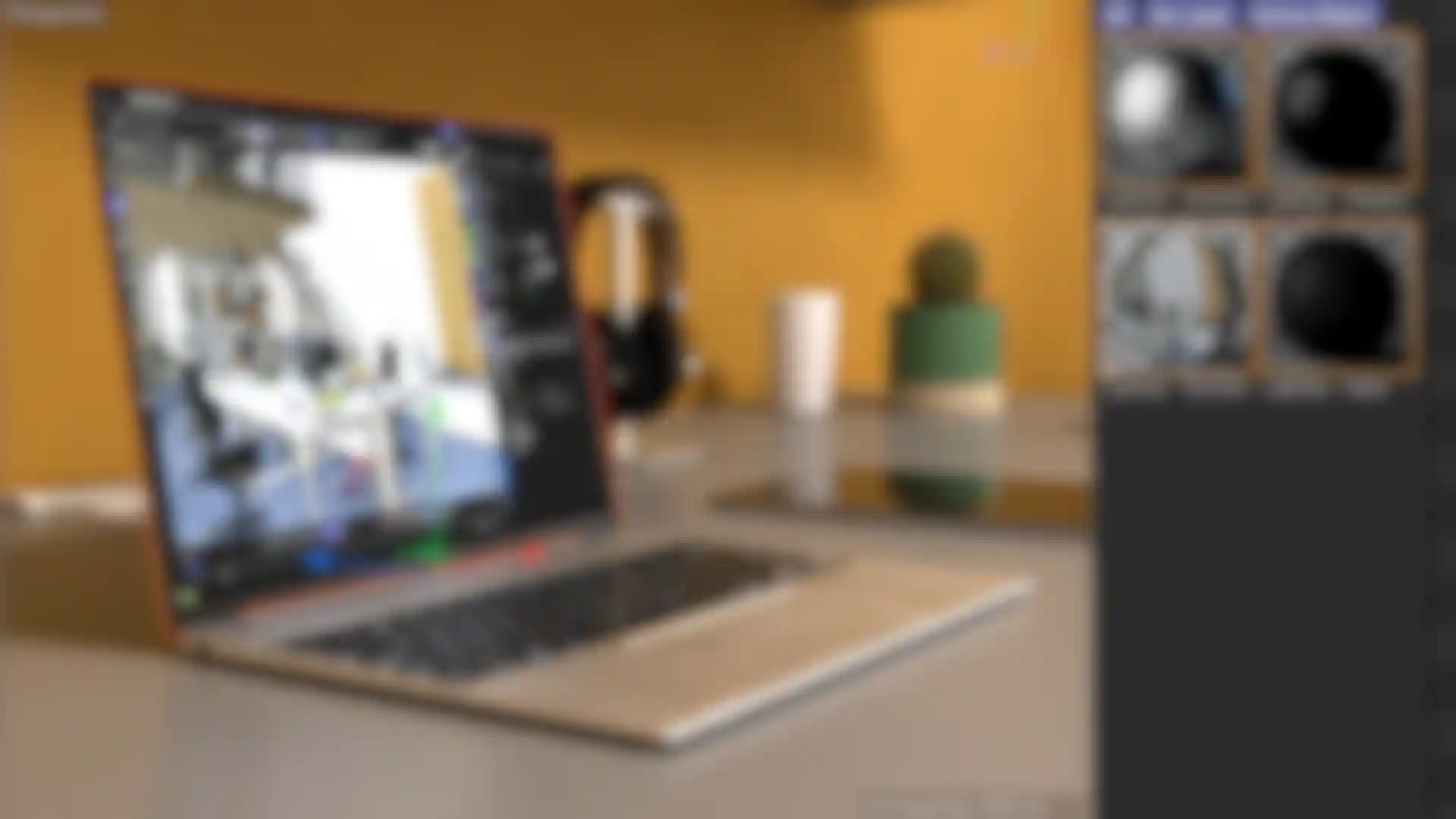
Render with ultimate realism using the new Physical Render Engine in CINEMA 4D Release 13. Use real camera settings like shutter speed and aperture to view the Project through the lens - with 3D depth of field, motion blur and more.
Render advanced effects like blurry reflections, Area shadows and Ambient Occlusion along with accurate depth of field and motion blur. The Physical Renderer’s shared image sampler samples the Project just once and shares the result between all these effects, reducing the incremental time required to render each effect and guaranteeing accurate results as the effect combine with one another.
Produce accurate 3D motion blur based on real optical parameters. Rotational motion is blurred properly because the full 3D animation data is used, and because the blur is produced at render time rather than as a post effect, it interacts properly with shadows, transparency and other Project elements.
Imitate a still or movie camera using focal length, f-stop and shutter speed or angle to dial in the depth of field and motion blur. You can optionally define the ISO or Gain, which combines with other camera settings to determine the exposure of the image. Simulate other flaws of real-life cameras, like lens distortion, vignetting and chromatic aberration for the ultimate photorealism.
Create eye-popping stereo 3D visuals using the complete stereoscopic workflow in CINEMA 4D Release 13. Easily convert existing projects or create new stereo scenes using a few simple camera settings, and preview the stereo effect within the Viewport. Render the merged image or individual channels and preview the stereo effect within CINEMA 4D’s Picture Viewer.
A few simple settings convert any CINEMA 4D camera into a stereo rig. Simply enable one of the stereo modes, define the eye-separation and convergence, and choose between parallel, off-axis, on-axis or radial placement. Safe regions can be defined manually or defined automatically by CINEMA 4D.
Many minor improvements and new functions make working with CINEMA 4D R13 easier when rendering.For example, the new Far Clipping camera parameter: Use it to define a clipping plane behind which Project elements will be hidden; or the new anti-aliasing filter options that give you ultimate control over smoothing in your renderings; or the new physically correct Fresnel effect, which adds a new dimension when rendering reflections!
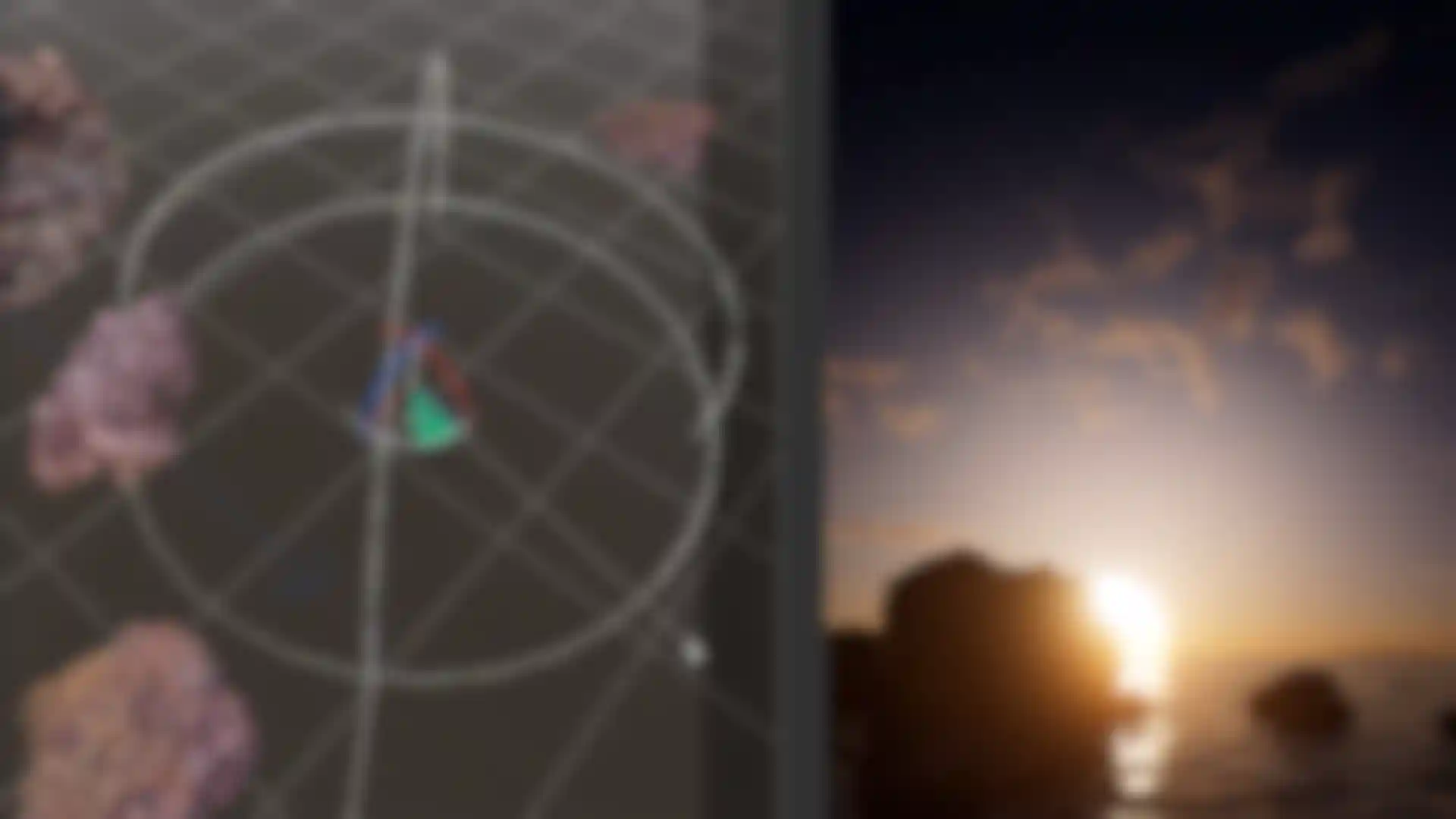
Easily detect and correct Gimbal lock with the new Gimballing Rotation axis mode and user-defined rotation order. The Gimballing axis adjusts the orientation of individual rotation bands to display the actual plane of rotation. You can often avoid Gimbal lock by specifying the rotation order individually for each object prior to animating. Simply cycle between each of the rotation order options and use the Gimballing display to see how they affect the rotation.
Organize your animation more efficiently in R13 thanks to enhancements to Timeline markers. Each marker now includes a Notes field that can include explanatory text and you can quickly re-name markers by double-clicking them in the Timeline. Even better, multiple markers can now be selected and manipulated as a group, and markers can be manipulated in C++ plug-ins or Python scripts.
Precisely edit Function curves with new options for manipulating keyframe tangents. A new option is available for locking the visual angle between tangents, as well as commands for matching the length or angle of the left and right tangents. You can now reset the tangent length and angle more quickly via a command rather than a toggle. Manipulating F-Curves is also more intuitive since the Viewport now interactively updates to show the result of the change.
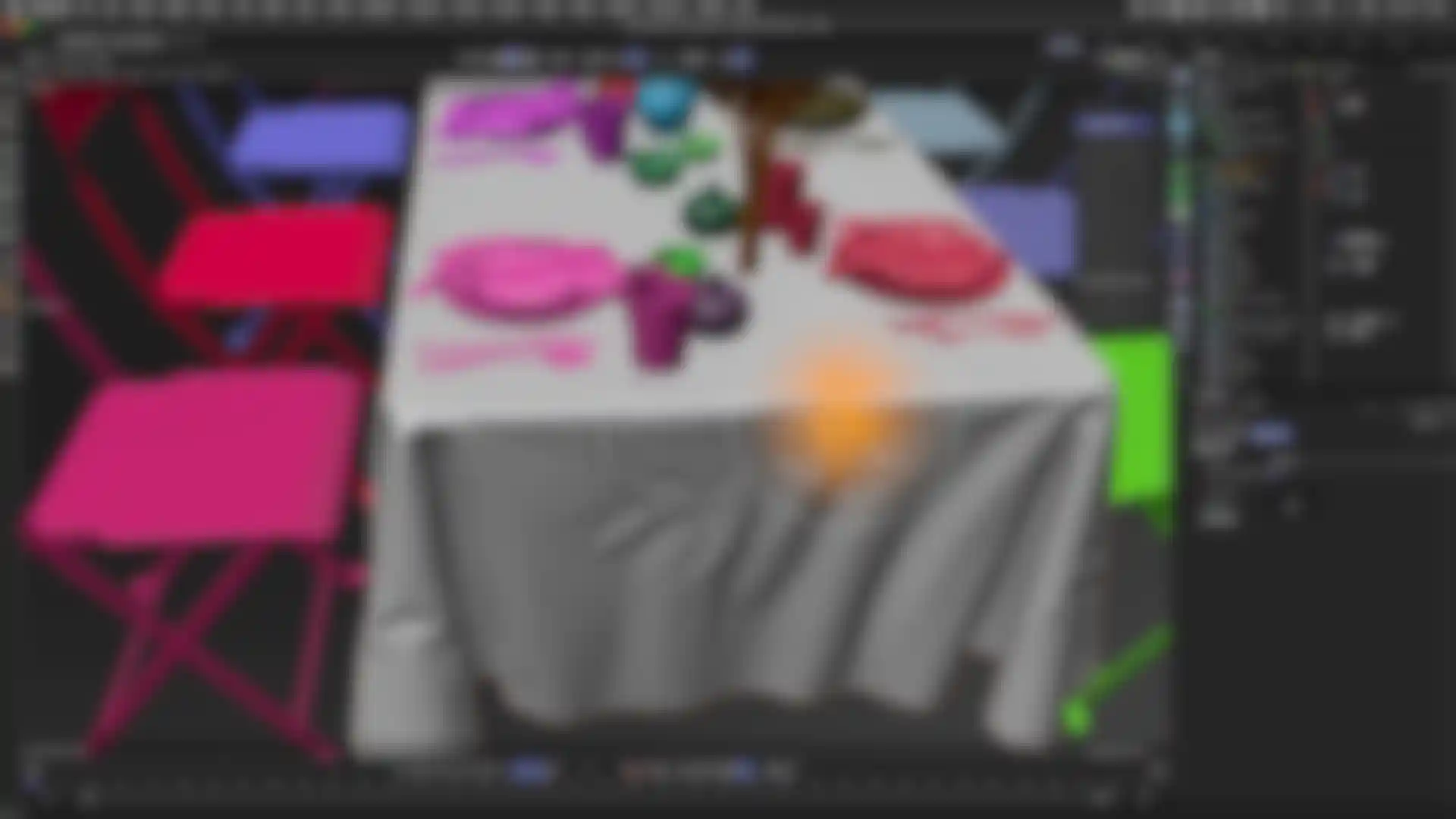
CINEMA 4D R13 contains numerous tweaks and improvements for modeling. Whether you want to modify a row of points of a particular polygon, for example to achieve a Matrix extrude effect, or if you want to take advantage of the optimized workflow to work faster using hotkeys, you'll soon wonder how you ever got along without these new features!
Easily copy selected objects by simply holding the Cmd/Ctrl key as you drag out a duplicate. Pressing Cmd/Ctrl while dragging polygons and edges allows you to quickly perform an extrusion. Shift+dragging at any time while moving elements within the view allows you to constrain movement to a single axis.
New features for selecting make modeling in CINEMA 4D even easier. Simply double-click on any single edge to select a loop of connected edges. Edge loops are essential for use in modeling, Spline creation or joint placement. With a mesh containing several disconnected polygon groups you can quickly select each group by simply double-clicking on any single polygon within the given group.
The HyperNURBS object features a new, faster subdivision surface algorithm that offers better weighting. You can now get sharp but smooth creases with clean, continuous transitions between individually weighting points, edges and polygons. The HyperNURBS object now handles N-Gons better, correctly subdividing around holes and subdividing the UV coordinates.
Axis modification now works as a toggle and allows you to quickly snap the object axis in Object and Model modes, or the modeling axis in Component modes to any point, edge or polygon. This makes it easy to define the origin for rotate and scale operations and works with improved snapping to more accurately position elements.
Easily expand disconnected polygon groups into separate objects with this new command in Release 13. This command works specifically on polygon objects and places each sub-object as a Child of the original, so you can quickly split models that are imported as a single connected object.
In Release 13 you can quickly tweak individual objects or components without selecting them first. Tweaking is now enabled automatically whenever there is no selection, eliminating the need for separate modes. Simply click and drag on any element to start moving it with ease. A single click and drag is all that’s necessary to select and move components and fine-tune your scene.
With enhanced axis snapping in Release 13 you can quickly position objects and components in relation to other elements within the scene. Cmd/Ctrl+right+click on an axis handle lets you reposition that handle and snap it to any surface. Once you begin moving, scaling or rotating the selected elements, an infinite axis guide will appear that allows you to use virtually any element as a guide for snapping.
Resize elements precisely thanks to variable-speed scaling in R13. You can click different areas of the Scale tool’s axis stem to define the speed. Click near the object’s origin to scale quickly, or further away for more precise scaling. If you click the axis handle at the end of the stem, the scaling directly relates to the movement of the mouse.
Simulate snow-capped mountains and aged surfaces with the new Terrain Mask Shader, which generates a mask based on the altitude or slope of the object. Use this mask on its own by modifying the gradient colors, or apply it as part of a Layer shader or Alpha channel in conjunction with other textures. There are a multitude of uses - you can even use the mask to restrict the visibility of clones via a Shader Effector.
Create realistic brick and tile surfaces with the enhanced Brick Shader in R13. You can now define textures for the primary color, alternate color and grout areas, achieving greater realism and much greater flexibility. You can apply a texture to the dirt layer as well to simulate effects such as chipped paint and graffiti. Add the new Rain option to smear the texture vertically and further erode the surface.
Render skin, stone and other organic surfaces with accuracy and artistry using the all new Subsurface Scattering Shader in Release 13. The index of refraction, Fresnel properties and GI calculation of the scene all work together to create realistic shading, while a variety of presets for common materials help quickly create shaders.
Professionals and novices alike will value the new, well-structured workflow and interface functionality in CINEMA 4D R13. Complete your projects faster and more effectively thanks to CINEMA 4D R13's numerous improvements and optimized workflow.
Whether with the optimized camera behavior in the 3D Viewport – which eases orientation and movement through the Project – or the out-of-view indicator, which shows you the direction in which a selected object lies outside of the current view.
The user interface has also received a comprehensive makeover, ranging from tabs that can be arranged vertically, commands that can be executed with preset parameters, and Project files with preview images to font selection with matching previews and the ability to assign names to Viewports.
Within the Picture Viewer you can quickly view the image at actual size by double-clicking anywhere over the image area. If the image is already actual size, double-clicking will resize the image to fit within the Picture Viewer window.
Furthermore you can now easily define a different background color for the image area of the Picture Viewer, allowing you to see renders against a black, white or custom colors.
CINEMA 4D R13 features an all new external referencing system that provides a framework for outstanding collaboration and organization. XRef objects and materials now appear directly within the master Project and can be manipulated, animated and referenced directly within Expressions and Link fields. You can define whether animation, materials or point caches are imported from the referenced file and enable modification of the PSR, parameters, hierarchy or User Data of referenced objects within the master file.
Within the XRef Manager you can quickly view all the files referenced within the Project and easily select any of the objects, tags and materials within those files.
"Man is not an island" and neither is MAXON's CINEMA 4D R13, which comes with enhanced and improved import/export features.

CINEMA 4D’s revolutionary After Effects integration now converts the Stage object to an After Effects camera. Drop-frame NTSC frame rates of 29.97 are now supported, and Timeline markers from CINEMA 4D now appear in the After Effects comp. Individual channels of a stereo render appear as separate comps that can be easily integrated with the 3D Glasses effect in CS5.5.

CINEMA 4D now supports the 2010, 2011 and 2012 versions of FBX, offering much greater compatibility with 3rd-party applications. Normals can be converted to a Phong tag with edge breaks on import, and are properly exported from CINEMA 4D. There are new options for reducing keyframes during both the import and export processes.

Multi-Pass renders can now be stored as multiple channels within a single OpenEXR file, simplifying file structures and enhancing the pipeline with compositing apps such as Nuke. OpenEXR also supports two new 4-by+4 pixel lossy compression modes.

CINEMA 4D R13 includes a new sound sub-system that utilizes QuickTime to import many more sound formats, including AIF, MP3 and AAC files. It is now easier than ever before to load audio files for use in lip-sync animation or as inputs to the MoGraph Sound Effector.

CINEMA 4D R13 now supports COLLADA 1.5, for enhanced compatibility with other applications. You can import both v1.4 and v1.5 files and can export to COLLADA version 1.4 or 1.5 via separate menu entries.

UV coordinates may now be edited as long as they have no "construction history".